How to schedule different Etsy discounts for weekdays and weekends
How to schedule different Etsy discounts for weekdays and weekends with SaleDay.
Want one discount from Monday to Friday and another on Saturday and Sunday? In SaleDay, add each group as a separate discount rule, review them together in a calendar, then confirm the creation of daily whole-shop promotions on Etsy.
The example we’ll build
These percentages are examples. Choose discounts that work for your own products and margins. This creates separate daily promotions, rather than one continuous month-long sale.
1. Open the correct Etsy shop
Use desktop Chrome with SaleDay installed. Sign in to the Etsy shop you own or are authorized to manage, then open Shop Manager → Marketing → Sales and discounts. Open the SaleDay side panel and sign in to SaleDay if prompted.
Check the connected shop before continuing. Choose your promotion month in Plan Sales. Sale creation requires an active trial or a paid plan. Choose dates within your plan’s available scheduling window. Check current plans and scheduling access if needed.
2. Add the weekday discount
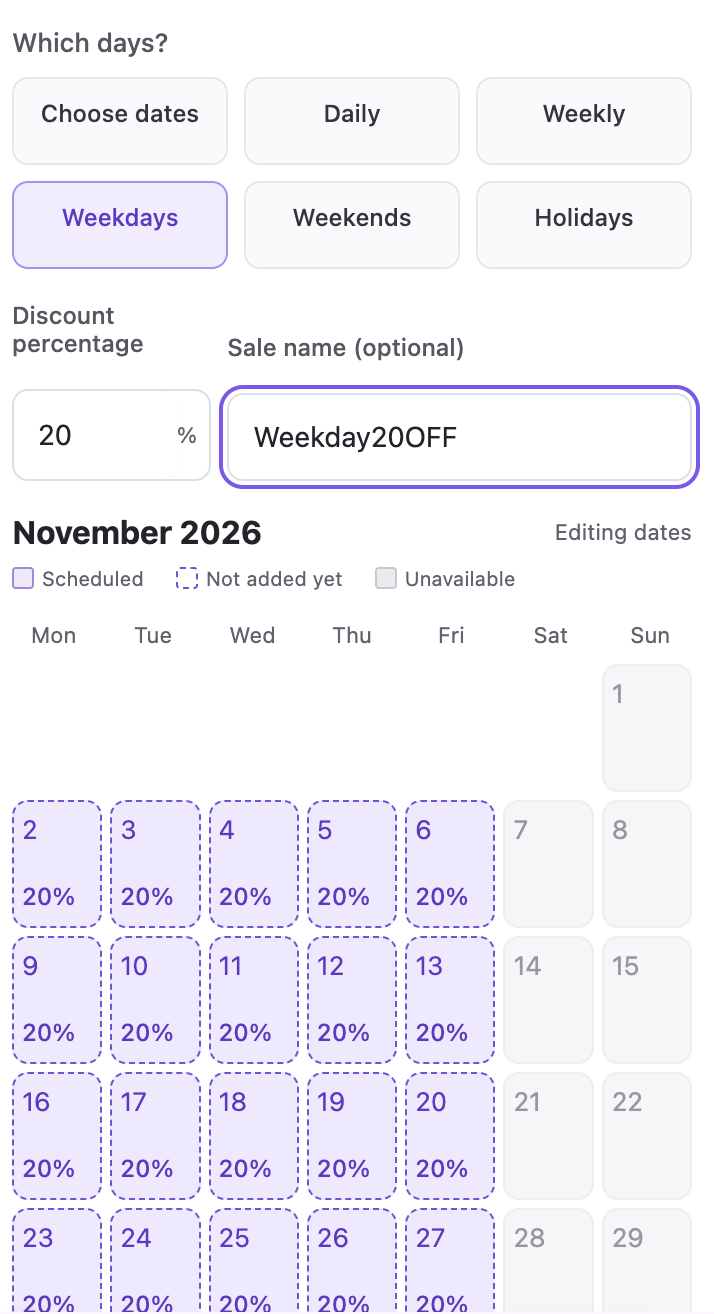
- Under Which days?, choose Weekdays for Monday through Friday.
- Enter 20 as the discount percentage for this example.
- If you use a promotion name, make it recognizable, such as Weekday20OFF.
- Check the selected dates, then click Add discount to include the rule in your plan.
Selecting days or typing a percentage is not enough by itself: make sure the discount has been added to your monthly plan.
3. Add the weekend discount
Start another discount rule in the same month. If the previous rule is still open for editing, choose Add another promotion first.
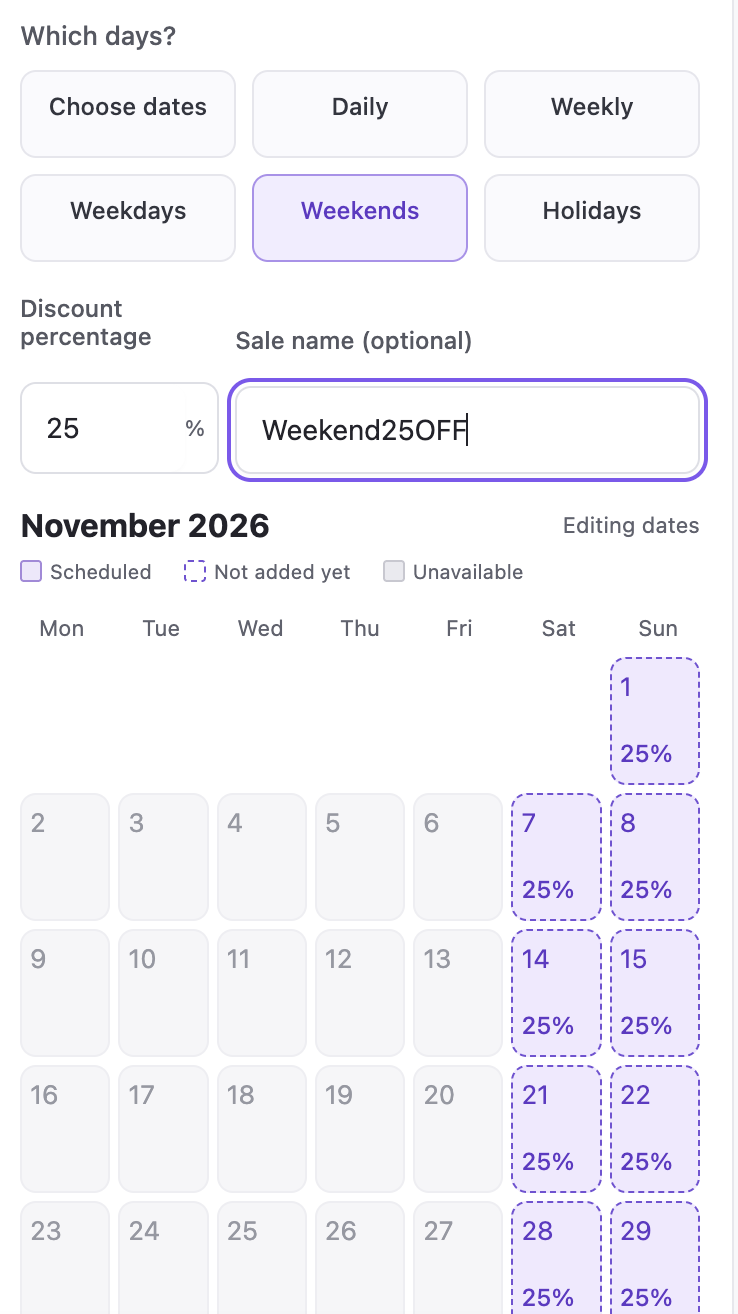
- Choose Weekends for Saturday and Sunday.
- Enter 25 as the discount percentage.
- Optionally give it a name such as Weekend25OFF.
- Click Add discount.
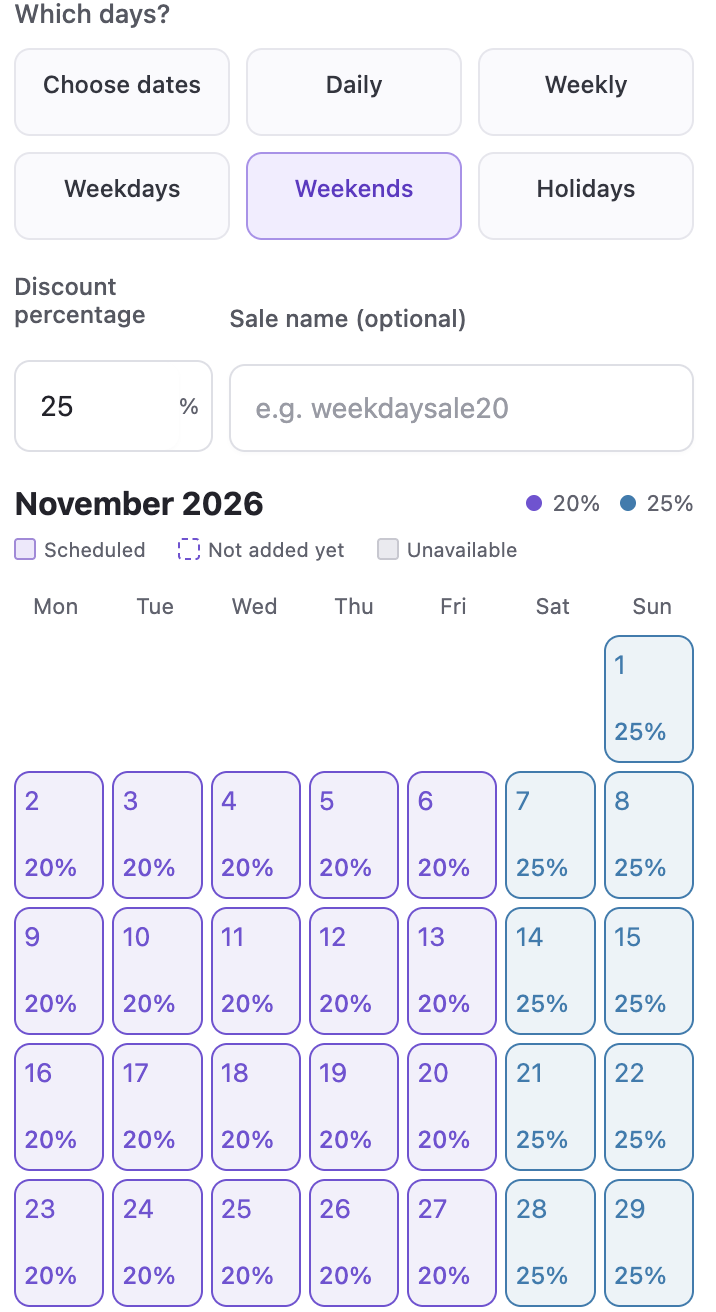
Your plan should now contain both discount groups. Keep the two rules in the same monthly plan so you can check them together before creating sales.
4. Review the combined calendar
Open Review Schedule. Check that weekday dates show 20% and weekend dates show 25%, allowing for any unavailable dates in your chosen month.
- Confirm the correct shop and month.
- Check every selected date and its discount.
- Confirm that each planned promotion applies to the whole shop.
- Resolve any warnings or conflicts before continuing.
Check promotions already scheduled on Etsy too. Do not assume the new plan will leave every existing sale unchanged; read any replacement or conflict information shown by SaleDay before approving a run.
5. Confirm creation on Etsy
When the schedule is right, continue to Create on Etsy, check the shop and schedule once more, and click Confirm and create on Etsy. SaleDay works through the dates and creates the daily whole-shop promotions after your confirmation.
Keep Chrome, the Etsy Sales and discounts page, and the SaleDay panel open while the run is in progress. SaleDay runs in your browser. Completion time depends on the number of dates and Etsy’s response time.
Follow the progress list and check the confirmed results. If a run pauses or shows a warning, read the message and check the result on Etsy before continuing.
6. Save the plan for next time
Use Save plan for next time, give the plan a clear name such as Weekdays 20 · Weekends 25, and save it. You can load the saved rules into another month, then review the new dates before creating sales.
Saved plans stay in the Chrome profile where you save them. They do not sync through your SaleDay account. Reusing a plan in another shop still requires checking the connected shop and staying within your plan’s shop allowance.
Watch SaleDay in action
The demo shows planning, calendar review, saved plans, and sale creation using selected dates. For the weekday/weekend example, use the day-selection options described above.
How to schedule Etsy sales with SaleDayWatch the demonstration on YouTube ↗Common questions
Can I use percentages other than 20% and 25%?
Yes. Those are illustrative values. Enter the percentages you want and use the planner’s validation and final review before creating promotions.
Will SaleDay create sales without my confirmation?
No. Planning and reviewing your schedule do not create sales. You confirm the creation run before SaleDay submits promotions on Etsy.
Can I close Chrome after saving the plan?
You can save a plan for later. Once a creation run is in progress, keep Chrome, Etsy’s Sales and discounts page, and the SaleDay panel open until it finishes.
Build your next promotion plan
Choose the days. Review the calendar. Confirm the setup.
Get SaleDay for Chrome ↗